01 / QUICK ANSWER
The fastest free way to animate a photo to speak
- Pick a photo: one person, facing the camera, face clearly visible.
- Record your voice: 5–15 seconds of clear speech, saved as WAV or MP3.
- Run SadTalker for free: on Google Colab (most reliable) or a Hugging Face Space (no sign-up).
- Download the MP4: a talking-head video with lip sync, blinks and head motion, and no watermark.
02 / COMPARE
Free ways to make a photo talk, compared
On a small screen, swipe the table sideways.
| Route | Cost | Install | Speed | Best for |
|---|---|---|---|---|
| Google Colab (free T4 GPU) | Free with a Google account | Nothing on your computer | About 8–9 min for a 6-second clip at 512 + GFPGAN in our test | Most reliable free option |
| Hugging Face Space (free CPU) | Free, no sign-up | Nothing; works in a browser | Shared queue; ours sat at 60 jobs and did not start | Quick tries when the queue is short |
| Your own Space copy (free CPU) | Free Hugging Face account | Nothing; one-click Duplicate | Slow on CPU, but no public queue | Private, no waiting in line |
| Your own NVIDIA GPU | Free software | Python install | About 118 s for an 11-second clip on an RTX 4090 (512 + GFPGAN) | Unlimited, private, best quality |
Every route runs the same open-source SadTalker model. The difference is whose computer does the work, and whether you wait in line.
03 / BEFORE YOU START
Prepare your photo and voice
Photo checklist
- Front-facing: eyes toward the camera, head not turned more than slightly.
- Clear face: no hands, hair or glasses glare across the eyes and mouth.
- Even light: no deep shadows on one side of the face.
- Neutral mouth: closed or slightly open works best; a big open smile can look odd.
- Good size: at least 512 × 512 pixels around the face. JPG and PNG both work.
Voice checklist
- Clear speech: one speaker, no music or background noise.
- Short first: 5–15 seconds for a free Space; longer clips are fine on Colab or your own GPU.
- Any language: SadTalker follows the sound, so it works with any language you record.
- No voice? Make one with any text-to-speech tool, then upload the audio file.
Not sure your files are suitable? Run them through our free input checker first.
04 / METHOD 1 · RECOMMENDED
Make a photo talk on Google Colab (free GPU)
Colab gives you a free NVIDIA T4 GPU in your browser. Nothing installs on your computer, and there is no public queue.
- Open Google Colab and sign in with a Google account.
- Go to Runtime → Change runtime type and choose T4 GPU.
- Run our tested notebook. It installs SadTalker, downloads the models and fixes the errors a plain Colab run hits today.
- Upload your photo and audio when the file picker appears.
- Wait for the render, then download the MP4 from the output player.
In our test on a free T4, a 155-frame clip (about 6 seconds) at 512 px with GFPGAN took about 8–9 minutes and used 7.2 GB of the 15 GB GPU memory.
Full Colab walkthrough
Screenshots, the notebook download and fixes for every error we hit are in our Google Colab guide.
05 / METHOD 2 · NO SIGN-UP
Make a photo talk on a Hugging Face Space
A Space is a free web app. Open it, upload your files and press Generate. No account is needed for public CPU Spaces, but you share the machine with everyone else.
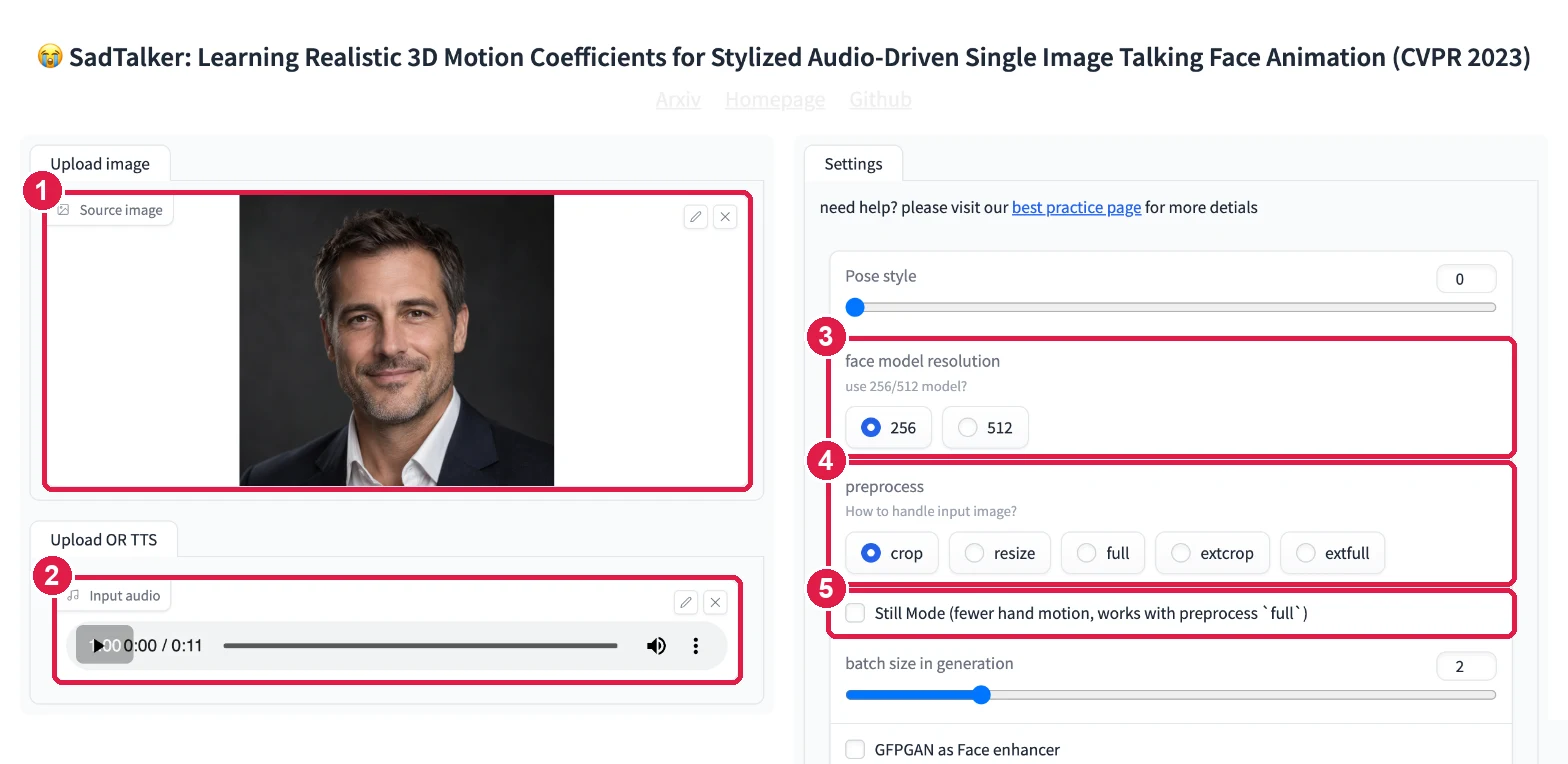
- Upload the photo under Source image.
- Upload the audio under Input audio.
- Keep 256 and crop for the first try; they are the fastest.
- Click Generate and keep the tab open while it waits in the queue.
- Download the result from the video player.
What happened when we tried the free Spaces
- vinthony/SadTalker (the official Space): build error, not usable.
- henrybit/SadTalker-Demo (fast ZeroGPU): refused the run because it requests 450 seconds of GPU time, more than free accounts are allowed.
- kevinwang676/SadTalker (free CPU): the full SadTalker interface loaded and accepted our files, but the job sat at position 60 of 60 in the queue and had not started after more than 4 minutes.
06 / MOBILE
Make a photo talk on your phone
- Record first: use your phone’s voice recorder, then save or share the file to Files or Downloads.
- Use the browser: open the Space in Chrome or Safari and upload the photo from your gallery and the audio from your files.
- Keep the screen on: a locked phone can drop the connection while you wait in the queue.
- Colab works too, but it is much easier on a laptop. Start it on a computer if you can.
07 / QUALITY
Best settings for a natural talking photo
On a small screen, swipe the table sideways.
| Goal | Settings | Why |
|---|---|---|
| Fast first preview | 256 · crop · GFPGAN off | Quickest render, enough to check lip sync |
| Sharp final video | 512 · crop · GFPGAN on | More face detail; takes longer |
| Steady presenter look | Still mode on | Less head movement, calmer result |
| Keep the whole photo | full · still mode on | Animates the face inside the original frame |
See the side-by-side tests: best settings, still mode, crop vs resize vs full, 256 vs 512 and GFPGAN. Our settings finder picks them for you.
08 / RESULT
Example: one photo plus 11 seconds of speech

Want more natural motion, built-in voices or editing? Paid tools go further. See our hands-on tests: SadTalker vs HeyGen, vs Colossyan and vs Elai.io.
09 / OUTPUT
Watermark, download and file format
- No watermark: current SadTalker code adds none. An old v0.0.2 build added a logo, so check the first frames of a Space result.
- Download: Spaces show a download icon on the result player; Colab saves the MP4 in the results folder.
- Format: an MP4 with your original audio. Square when you use crop; the original shape with full.
- Sound missing? That is an FFmpeg problem; see our FFmpeg fix.
10 / CONSENT
Use photos responsibly
Only animate faces and voices you have permission to use: your own, or someone who agreed. Animating another person to say things they never said can break privacy, impersonation or IT laws in many countries, including India.
Say when a video is AI-generated, and never use a talking photo to deceive or scam anyone.
11 / QUICK HELP
Frequently asked questions
Can I make a photo talk with AI for free?
Yes. SadTalker is free, open-source software that turns one photo and one audio clip into a talking video. You can run it free on Google Colab, on a public Hugging Face Space, or on your own NVIDIA GPU.
What is a talking head video?
A video of a face, usually head and shoulders, speaking to the camera. AI talking head generators create one from a single still photo and an audio clip, moving the lips, face and head to match the speech.
Which AI makes a photo talk?
SadTalker is the best-known free, open-source option. Paid tools such as HeyGen, Colossyan and Elai.io also animate photos, with more natural motion and built-in voices, but they charge per video.
Can I use my own voice?
Yes. Record your voice on any phone or computer, save it as WAV or MP3, and upload it with your photo. SadTalker lip-syncs to whatever speech you give it, in any language.
Is there a watermark?
Current SadTalker code adds no watermark. A logo watermark appeared in v0.0.2 and was later removed, so an old Space may still show it. Check the first frames of your result.
Does it work on iPhone or Android?
Yes, in the phone’s browser. Hugging Face Spaces and Google Colab both open on mobile. Record a voice memo first, then upload it with a photo from your gallery. Colab is easier on a laptop.
How long can the video be?
Public Spaces work best with 5–15 seconds of speech; one Space we tested recommends no more than 30 seconds. On Colab or your own GPU the length is limited only by time, because each second of video must be rendered.
Can I make a cartoon or painting talk?
Sometimes. SadTalker needs to detect a human-like face. Realistic portraits work best; stylised cartoons and side views often fail face detection.
Why is the official SadTalker Space not working?
On 23 November 2026 the official vinthony/SadTalker Space showed a build error. Use Colab, another community Space, or duplicate a working Space to your own account.
SOURCES
- Our test of three SadTalker Hugging Face Spaces, 23 November 2026
- Our Google Colab T4 test run and RTX 4090 still mode test
- SadTalker official repository and changelog (OpenTalker/SadTalker)
Next steps: install SadTalker locally, the GitHub repo explained or troubleshooting FAQs.